Recording a visit to a store
The everyday job: pick the store, write your notes, save the visit.
This is the everyday job. Choose the store, tap Record Visit, write your notes and save.
On the home screen tap the blue Select Store button.
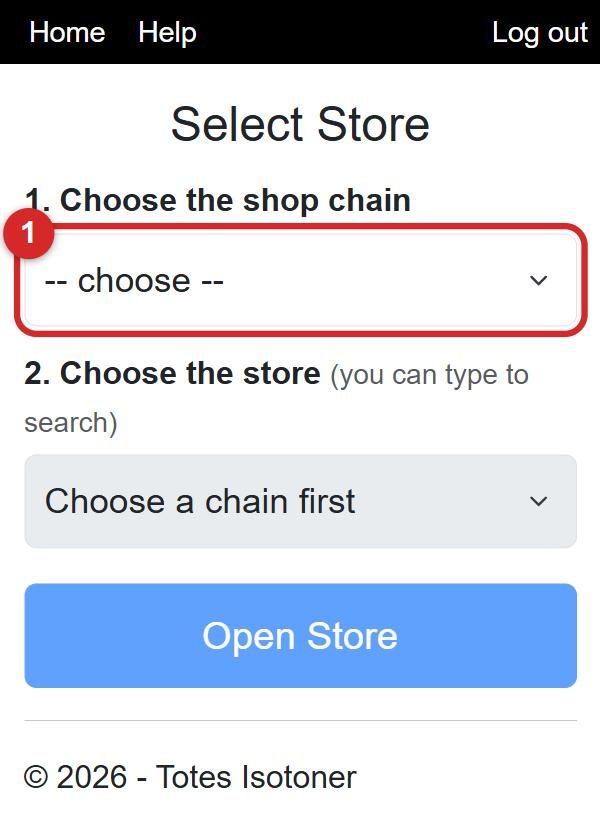
Under 1. Choose the shop chain, tap the box (number 1) and pick the chain, for example Tesco.
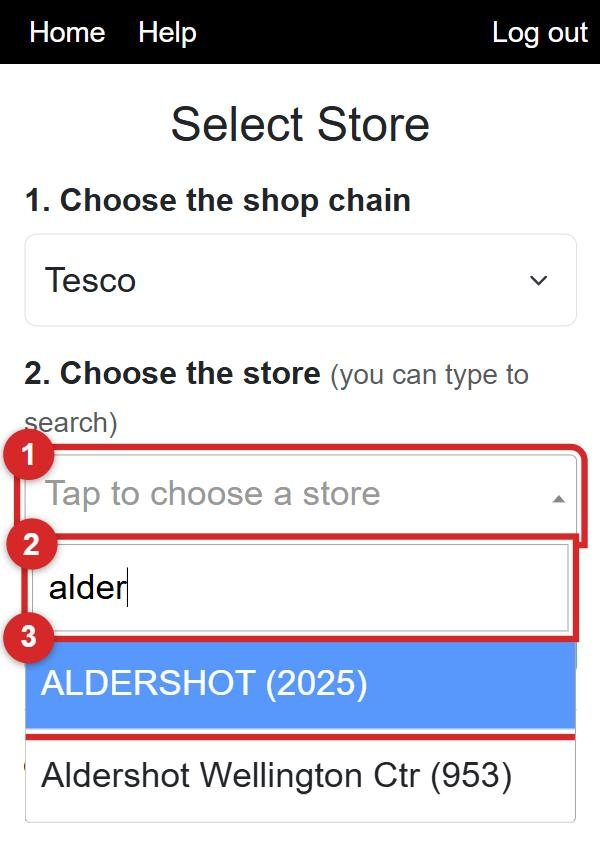
Under 2. Choose the store, tap the box (number 1). A typing box opens (number 2). Type a few letters of the town or the store number. Then tap your store in the list (number 3).
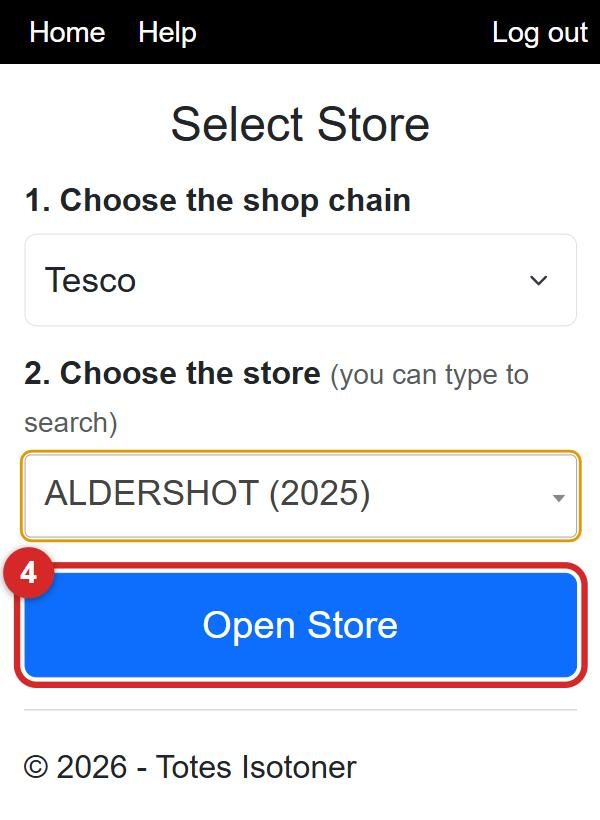
Your store now shows in the box. Tap the big blue Open Store button (number 4).
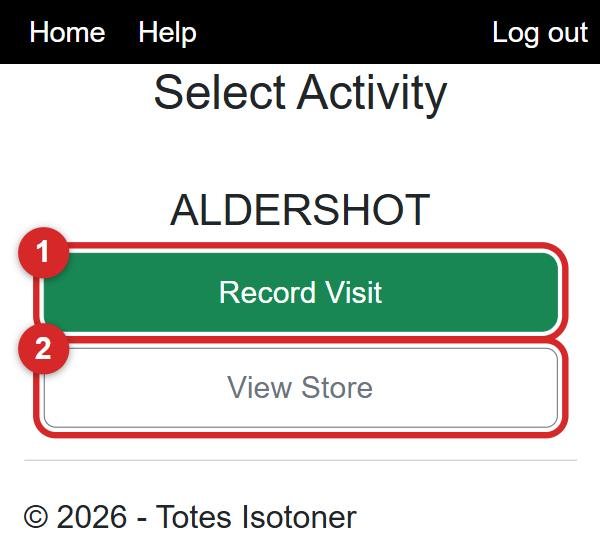
You now see the store's name. Tap the green Record Visit button (number 1).
The phone checks where you are. When it has found you, a green box says Location found. Type what you did in the big notes box (number 1), for example "Stand tidied and restocked".
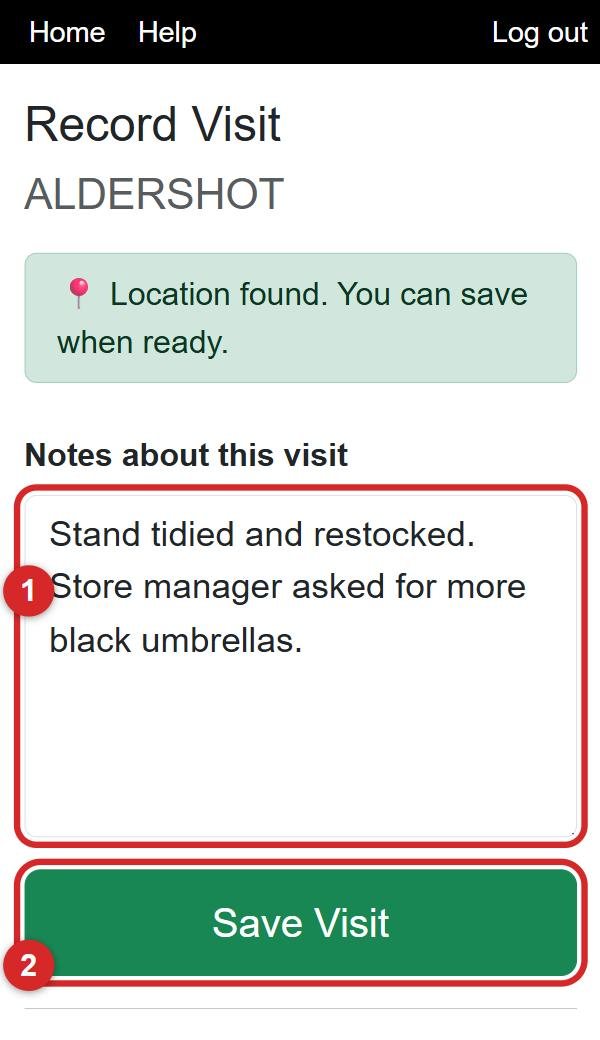
Tap the big green Save Visit button (number 2). You will see ✅ Visit saved and the app goes back to the home screen. That's it, done!
You might also want
- Finding your store in the list Choosing the chain, then searching for the store by name or number.
- "Allow location" message Why the phone asks for your location, and what to press.
- A store or chain is missing or empty What to do when your store isn't in the list.